How to Create a Video on MakeShot AI: A Step-by-Step Guide
Learn how to create a video on MakeShot AI with text-to-video or image-to-video, pick a model, write prompts, and check credit costs before you publish.
Introduction
Wondering how to create a video on
MakeShot AI without wasting your credits? Most beginners get stuck on
the same three things. They don’t know whether to pick text-to-video or
image-to-video. They can’t tell which AI video model fits their idea.
They also miss how plan limits and per-second pricing change the
final cost. This short guide solves each problem. You will learn the generator
workflow, prompt writing, image animation, model choices, and
current pricing from MakeShot’s own pages. You will also learn which checks to
run before you publish a clip. By the end, you will know exactly what to click,
what to type, and what each video costs.
What Is MakeShot AI Video Generator?
MakeShot AI
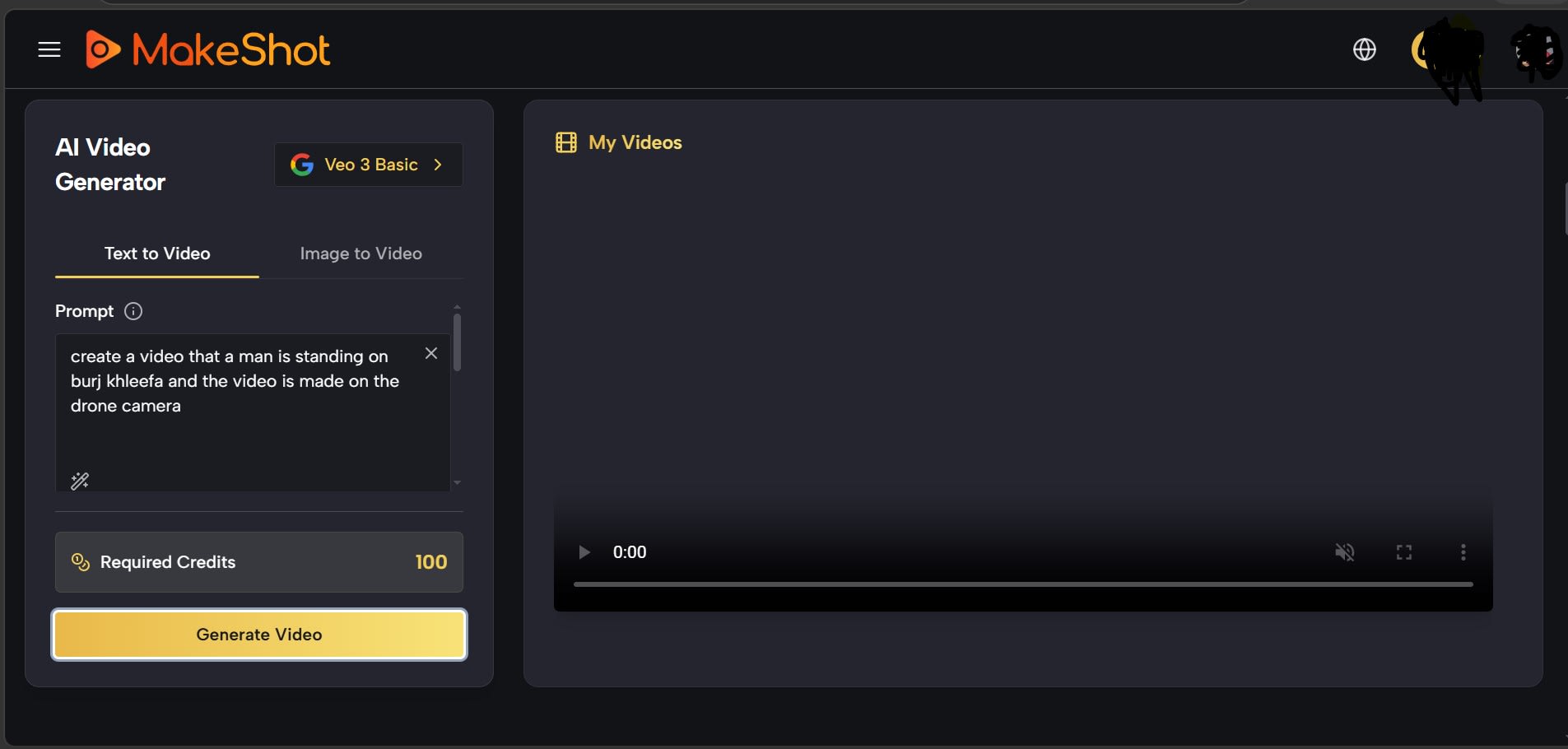
is an online site for AI image generation and video. Its video tool has
two main workflows: text-to-video and image-to-video. It also
puts several video models in one place. Text-to-video builds a clip from
a written description. Image-to-video starts with an uploaded picture and adds
motion from your instructions. Models and features change often, so check the model
selector before you start.
What Can You Create With MakeShot AI?
MakeShot lists
social media clips, ads, YouTube content, and learning videos as common
uses. Posting online? Our guide to AI tools for
social media marketing covers the
rest of the workflow.
How Can Businesses Use These Clips?
A product advertisement is
a good fit, such as a perfume bottle on a marble surface. Small teams can pair
clips with AI marketing tools for small
business, or drop them into slides with AI presentation tools.
Which AI Video Models Can You Choose on MakeShot?
MakeShot’s pricing page lists Veo
3.1, Kling 4.0, Seedance 2.5, Wan 3.0, Grok Imagine Video, Runway Gen 4,
MiniMax H3, Vidu Q4, LTX 2.5, and Gemini Omni. Each model has its own settings
and credit cost.
What You Need Before You Start
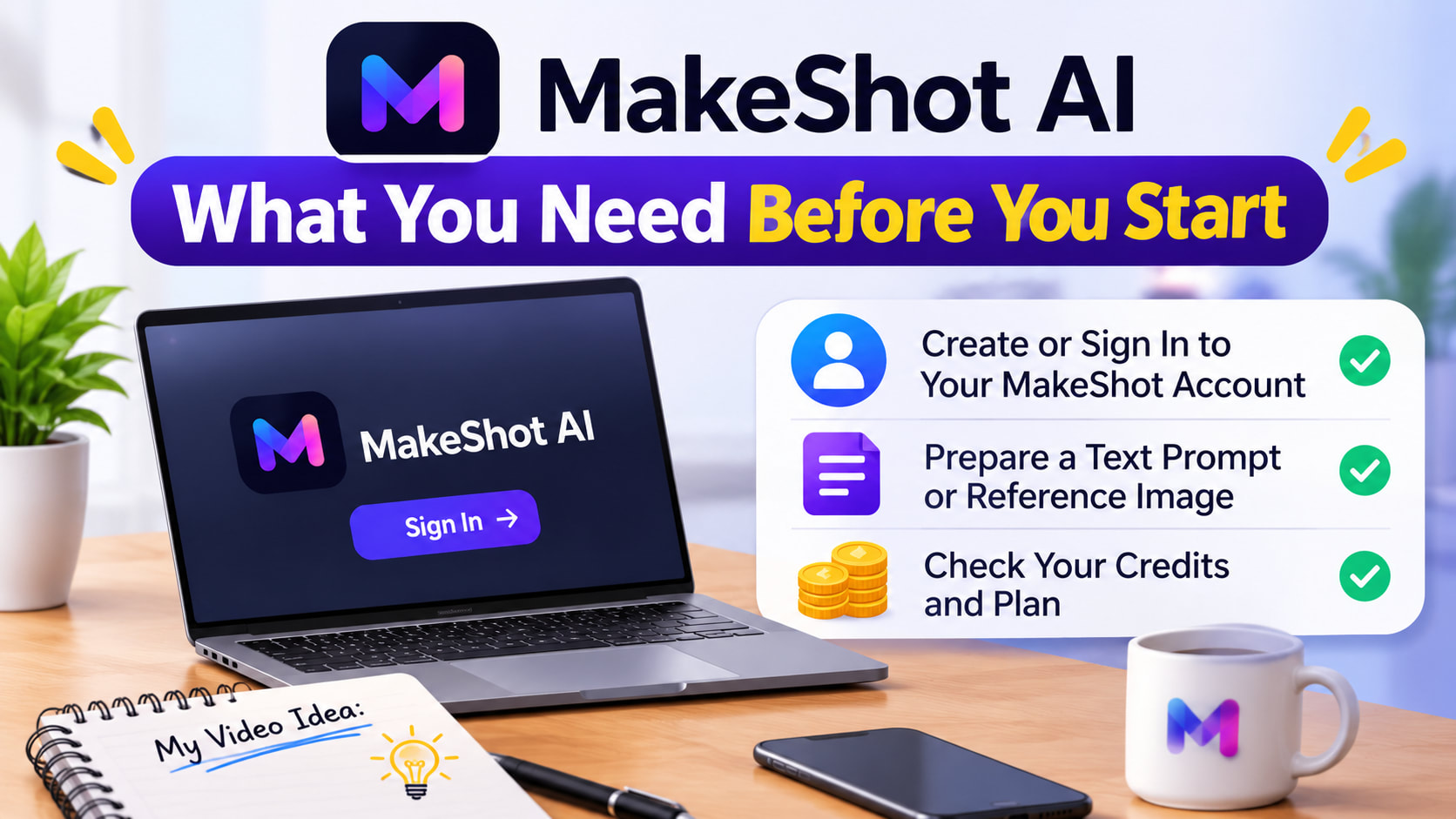
You do not
need editing experience. You need an account, a clear idea, and a quick look at
your credit balance. Knowing how to create a video on MakeShot AI starts
with these three basics. Decide early whether you will start from words or from
a picture. That one choice shapes the prompt, the model, and the cost of
your first test.
Account and Access
Visit the MakeShot
AI website and sign in or create an account. Then open the video generator
and check which models your account can use. Some SOTA models need
credits even on the Unlimited plan.
Text Prompt or Reference Image
Pick text-to-video if you only
have an idea, like a red sports car on a desert highway. Pick image-to-video if
you already have a photo. MakeShot documents reference images and frame
controls for selected models, but they don’t lock every detail.
Credits and Model Requirements
Check your balance before you
generate. Some models charge a set price for one setting. Seedance 2.5, Wan
3.0, and Kling 4.0 bill per second, so a longer clip costs more. Resolution
and model version also change the price.
How to Create a Video on MakeShot AI Step by Step
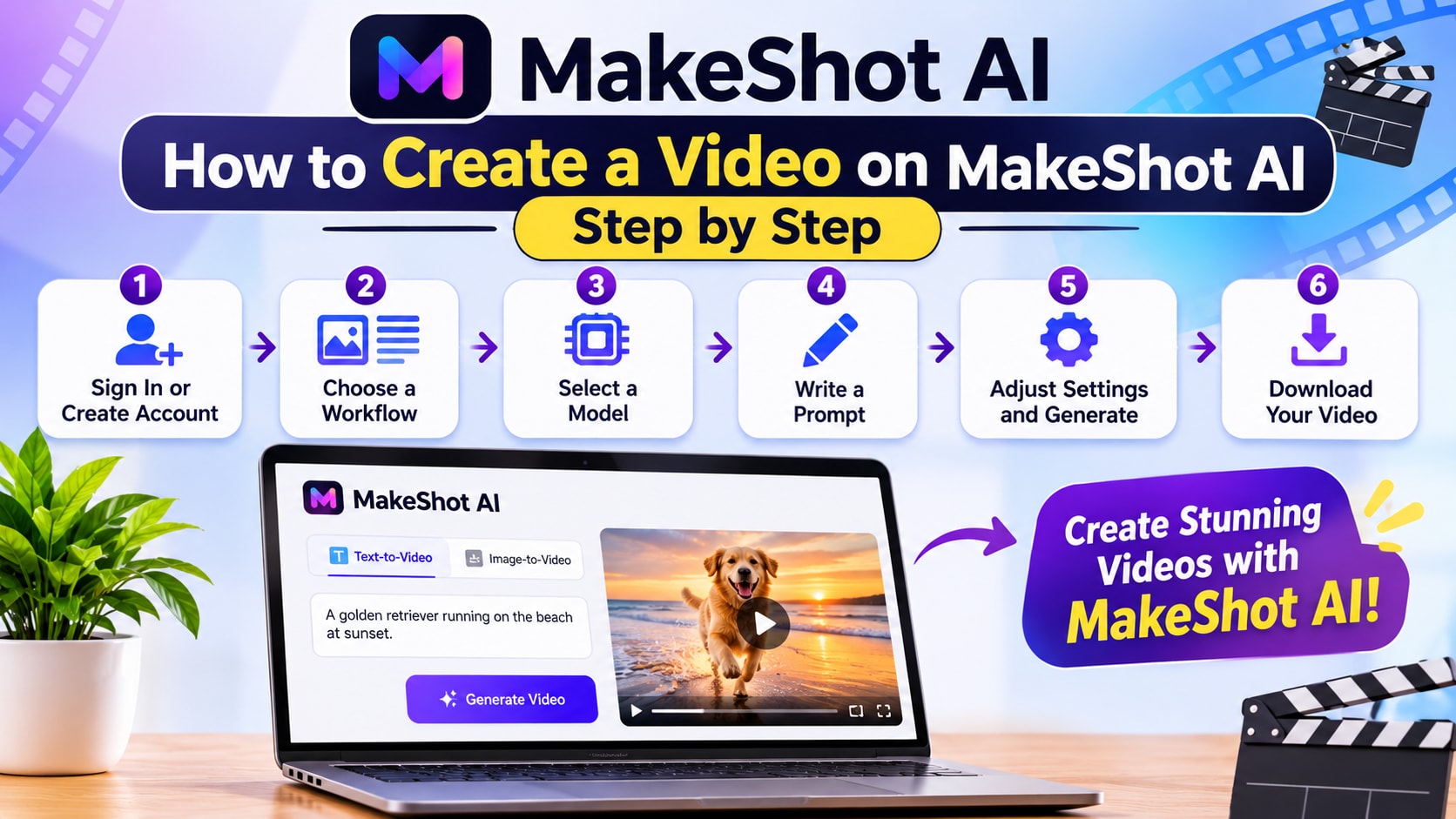
This is the
full process for how to create a video on MakeShot AI. You open the generator,
choose a workflow and model, write a prompt, and generate. MakeShot may change
its layout, so follow the options on your screen. Start with a short clip and a
simple prompt. A short test often costs fewer credits and shows how the
model reads your words. Then refine one detail at a time.
Open the MakeShot AI Video Generator
Go to the MakeShot AI
video generator. The page
shows example videos, a prompt box, and the model selector. Sign
in if the site asks you to.
Choose Text-to-Video or Image-to-Video
Use
text-to-video to build a scene from words. Use image-to-video to animate a
picture you already have. For a first try, text-to-video keeps things simple
because you only test the prompt and the model.
Choose a Video Model
Open the model selector and compare. Check the supported
duration, resolution, input types, and credit cost. These matter
more than a model name. The model section below has a table of examples.
Write a Detailed Video Prompt
Describe the subject, its
action, the setting, the lighting, and the camera movement. A short prompt like
“A sports car in the desert” leaves too many choices to the model. Try this
fuller version:
A red sports car drives along a
dusty desert highway at sunset. Sand rises behind its tires as the camera
tracks beside the moving car. Warm golden-hour lighting, realistic reflections,
and smooth cinematic motion.
Adjust Settings and Generate
Check duration, aspect
ratio, and resolution for your model. Use vertical video for short-form
social posts and horizontal video for YouTube. Look at the credit cost on
screen, then start the generation.
Review and Download Your Video
Watch the full clip. Check the
subject, motion, and composition, then zoom in on logos, labels, and
signs. If something is wrong, change only the instruction that caused it.
Before you publish, read MakeShot’s Terms and Conditions for watermark and license rules.
How to Turn an Image Into a Video on MakeShot AI
Image-to-video
fits best when you already own a photo, illustration, or product shot. MakeShot
says it animates your uploaded image based on your instructions. The result can
still drift from the original, so compare the two. You can also open MakeShot’s
image-to-video
page. Aim for
subtle motion. Small moves keep the subject, colors, and background
closer to your source. Big actions give the model more chances to change
details.
Prepare a Clear Starting Image
Upload a sharp image with a clear
subject and a simple background. If you make the image with AI first, our guide
on how to write AI image prompts helps. Also read why AI images look fake and fix those flaws before
animating.
Pick an Image Model for Your Starting Frame
MakeShot also
lists image models such as Nano Banana Pro and GPT Image 2. Compare them in our
Nano Banana
Pro vs Nano Banana 2 and GPT Image 2
vs Nano Banana Pro guides.
Keep a Character Consistent
MakeShot says Nano Banana takes up to 4 reference images,
and Nano Banana Pro takes up to 8, to keep a consistent character. Our
guide to creating consistent AI characters shows the full method.
Write an Image Animation Prompt
Focus on movement. Don’t repeat
what the image already shows. For a lake photo, try this:
Gentle ripples move across the
lake. Clouds drift slowly above the mountains, and nearby tree branches sway
slightly in the breeze. Use a subtle forward camera movement. Preserve the
original landscape, composition, and natural lighting.
Check the Result Against the Original
Compare the subject,
colors, background, and fine details. If a label or object changes shape,
simplify the prompt and ask for subtle motion. For portraits, start with one
small action, like blinking. Inspect text, logos, and signs closely.
Which MakeShot AI Model Should You Choose?
MakeShot
describes Veo 3.1 as photorealistic, Kling as fluid motion, Seedance 2.5 and
2.0 as speed-focused, and Wan 2.5 as artistic. Treat these as the platform’s
own guidance, not an independent ranking. The table below lists settings
MakeShot shows on its pricing page, checked on November 13, 2026. Use it to
narrow your choice before you spend credits.
|
Model |
Settings MakeShot lists |
|
Kling 4.0 |
Text to
video, frames to video, and reference to video; 3 to 30 seconds; 720p or
1080p |
|
Kling 4.0
Flash |
3 to 20
seconds; 720p shown |
|
Gemini Omni |
4 to 10
seconds; 720p, 1080p, or 4K; video references |
|
Gemini Omni
Flash 1.1 |
4 to 10
seconds; 360p, 720p, 1080p, or 4K; video references |
|
Veo 3 |
8-second
videos with native audio |
|
Veo 3.1
Basic |
3 reference
images, frame control, faster processing |
|
Veo 3.1
Premium |
4K quality,
frame control, multiple reference images |
|
Wan 3.0 |
480p, 720p,
or 1080p; reference video mode |
|
MiniMax H3 |
768P or 2K;
first five reference images free |
Veo for Realistic and Cinematic Scenes
Consider Veo
when you want a realistic style and detailed scene control. MakeShot
lists Veo 3, 3.1 Lite, 3.1 Basic, and 3.1 Premium. Learn more on MakeShot’s Veo 3 page or the Google
DeepMind Veo page.
Kling for Motion-Focused Video
MakeShot pitches Kling for fluid
movement, such as a moving vehicle or a walking character. See its Kling 4.0 page and the official Kling site. For a deeper look, read our Veo 3 vs
Kling AI comparison.
Seedance for Fast Generation
MakeShot lists Seedance 2.5 and
Seedance 2.0 as options built for rapid generation. Both use per-second
credit pricing, so clip length drives the total. Check the Seedance 2.5 page for current details.
Wan for Different Visual Styles
Wan 3.0 bills 10, 20, or 50
credits per second at 480p, 720p, and 1080p. Reference video mode bills input
plus output duration. Run a short test before you commit more credits to a
long project.
Grok and Other Available Models
MakeShot also lists Grok Imagine
Video, Runway Gen 4, MiniMax H3, Vidu Q4, and LTX 2.5. You don’t need to try
every model. Pick one, review its settings, and test another only if the first
result misses your goal.
MakeShot AI Video Prompt Examples You Can Try
A good prompt
names what appears, what happens, and how the camera moves. Keep the language
plain. These are example prompts to adapt, not claims about results MakeShot
produced.
Cinematic Product Advertisement Prompt
A premium
perfume bottle stands on a black marble surface. Soft golden light reflects
across the glass while a thin layer of mist moves around the base. The camera
slowly moves closer to the bottle. Luxury commercial style, realistic
reflections, elegant composition, dark background.
For
image-to-video, upload a photo of your real product. Ask the model to keep its
shape, color, and label. Selling online? See our list of AI tools for
ecommerce business.
Landscape Image Animation Prompt
Gentle ripples move across a
peaceful mountain lake. Clouds drift slowly above the mountains, while tree
branches move slightly in the breeze. The camera slowly pushes forward toward
the water. Natural daylight, realistic movement, calm atmosphere. Preserve the
original landscape composition.
This prompt asks for small
movements instead of a new scene. That helps the original photo stay
recognizable.
Educational Social Media Video Prompt
A realistic
view of Earth rotating slowly in space. Sunlight gradually illuminates the
oceans and clouds as the camera moves closer to the planet. Educational
documentary style, clear visual details, smooth camera movement, dark space
background, vertical 9:16 composition.
If you post
this as an educational video, check the science. AI visuals can get planets,
maps, or processes wrong.
How to Describe Camera Movement in a Prompt
|
Camera term |
Meaning |
Example instruction |
|
Pan |
Camera
turns horizontally |
Slowly pan
from left to right |
|
Tilt |
Camera
points up or down |
Tilt upward
toward the building |
|
Zoom |
View moves
closer or farther |
Slowly zoom
in on the subject |
|
Dolly |
Camera
moves forward or backward |
Use a slow
dolly-in toward the product |
|
Tracking
shot |
Camera
follows a moving subject |
Track
beside the moving car |
|
Static shot |
Camera
stays in one position |
Keep the
camera fixed |
Combine one
camera move with your lighting and subject action. Keep it focused, especially
in a short clip.
How Much Does MakeShot AI Cost to Generate Videos?
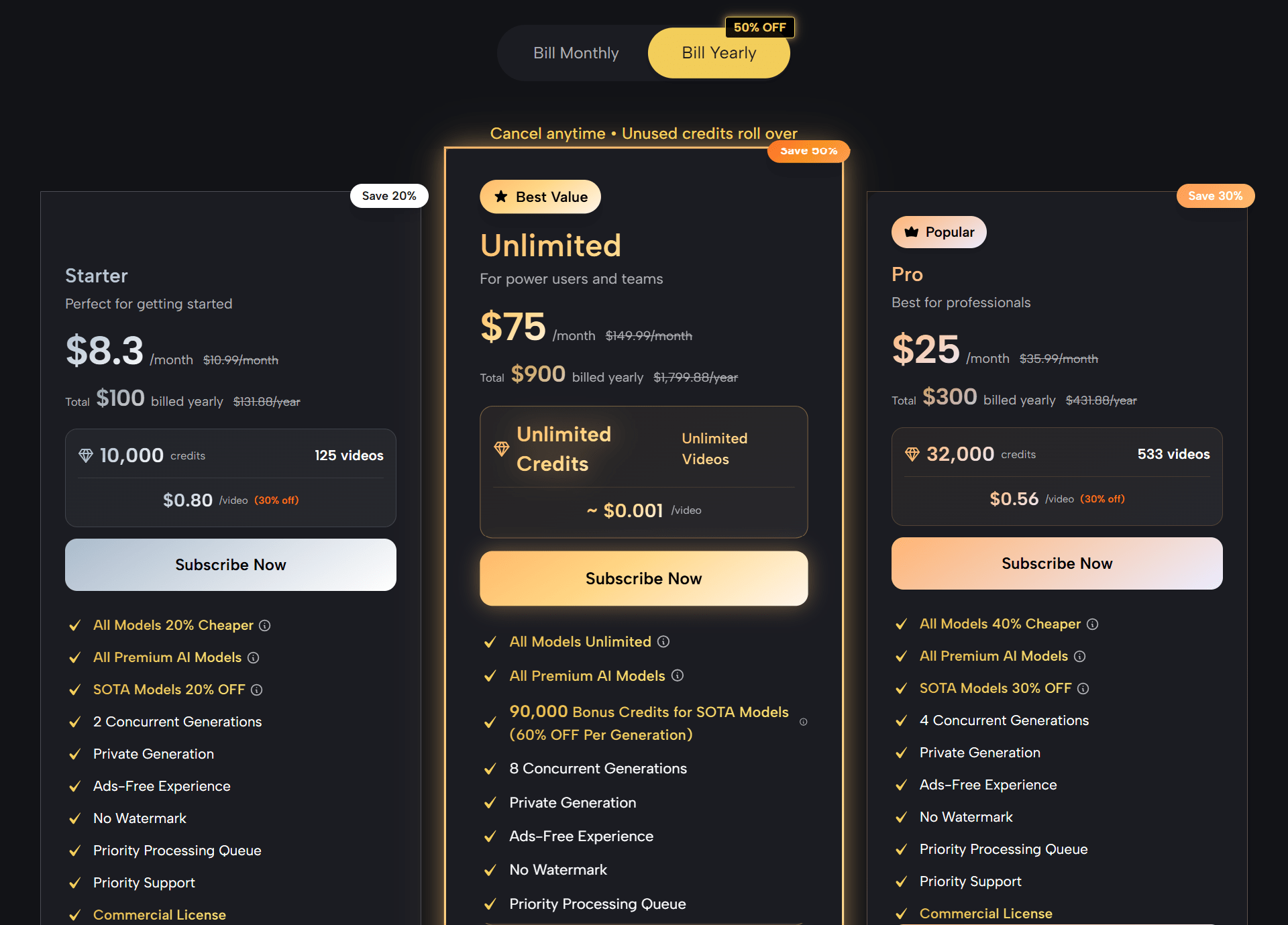
MakeShot
sells monthly and yearly plans with different credit amounts. The price of one
video also depends on the model, resolution, and duration. MakeShot says
you can cancel anytime and that unused credits roll over.
The prices
below come from MakeShot’s official
pricing page, checked on
November 13, 2026. The page runs promotions and shows different numbers in some
comparison views, so confirm the final price at checkout.
|
Plan |
Monthly billing |
Yearly billing |
Included credits |
Concurrent generations (monthly / yearly) |
|
Starter |
$29.99/month |
$100/year
(about $8.30/month) |
2,500/month
or 10,000/year |
1 / 2 |
|
Pro |
$89.99/month |
$300/year
(about $25/month) |
10,000/month
or 32,000/year |
3 / 4 |
|
Unlimited |
$149.99/month |
$900/year
(about $75/month) |
Unlimited
on eligible models |
5 / 8 |
Is MakeShot AI Free and Does It Offer Free Credits?
MakeShot
markets some models as free, and its pricing notes mention Free and Pay Once
users. The page does not state a free credit amount, so check your own account.
If you want zero-cost options, see our list of free AI tools
for a video generator.
How Many Credits Does Each Video Need?
There is no
single price. The table shows MakeShot’s regular credit cost for the setting it
displays, before plan discounts.
|
Model |
Setting shown |
Regular credits |
|
LTX 2.5
Fast |
720p, 5
seconds |
40 |
|
Wan 3.0 |
480p, 5
seconds |
50 |
|
Veo 3 |
8-second
video |
100 |
|
MiniMax H3 |
768P, 5
seconds |
100 |
|
Gemini Omni
Flash 1.1 |
720p, 4
seconds |
100 |
|
Veo 3.1
Basic |
Not stated |
150 |
|
Seedance
2.5 |
480p, 5
seconds |
200 |
|
Veo 3.1
Premium |
Not stated |
200 |
|
Kling 4.0
Flash |
720p, 5
seconds |
350 |
|
Kling 4.0 |
720p, 5
seconds |
375 |
Per-second
billing adds up fast. Kling 4.0 lists 75 credits per second at 720p without
video input. A 10-second clip would cost 750 credits at that base rate. With a
reference video, MakeShot bills the output plus the longer of the input or
output length.
Does the Unlimited Plan Cover Every Model?
No. MakeShot
says SOTA models are excluded and need credits. The list includes Kling 4.0,
Gemini Omni, Seedance 2.5, and MiniMax H3. The Unlimited card, shown with
yearly billing, lists 90,000 bonus credits for these models. Comparing prices
across tools? See our AI image
generator pricing breakdown.
Common Problems to Check Before Publishing
AI video can
look right at first glance and still hide errors. Watch the clip at full size,
more than once. Check the first second and the last second, because that is
where many odd changes show up.
Also confirm
the legal side. Read MakeShot’s Terms and
Conditions and Refund Policy before you
pay or post.
• Distorted subjects: Look for warped hands, faces, or objects. Simplify the action and
try again.
• Changed text and logos: Labels, signs, and brand marks can shift during animation.
Re-check them frame by frame.
• Wrong motion: If the
camera moves too fast, ask for a slower move in the prompt.
• Wrong format: Match the
aspect ratio to your platform before you generate.
• Surprise credit costs: Per-second models, such as Seedance, Wan 3.0, and Kling 4.0, cost
more as clips get longer.
• Real people: MakeShot
says it doesn’t generate videos of real, identifiable people without consent.
Use fictional characters or images you have the right to use.
• Accuracy: Fact-check
any educational, medical, or scientific visual before it goes live.
Conclusion
Now you know how to create a video
on MakeShot AI from start to finish. Choose a workflow, pick a model, write a
clear prompt, and test with a short clip. Then review every detail before you
publish.
Prices, models, and settings change, so check MakeShot’s pricing page before you subscribe. For more tools and comparisons, browse our AI
video tools category.
Frequently asked questions
How do you make AI create a video?+
Pick an AI video generator, describe your scene in a detailed prompt or upload an image, choose a model, and generate. Then review the clip and download it. On MakeShot AI, check the credit cost before you start.
How to create a video using videos?+
Use a generator that accepts video input, then describe what should change. MakeShot lists video references for Gemini Omni, and Wan 3.0 and Kling 4.0 bill for the input length too. To join your own clips, use a video editor instead.
Which AI video creator is free?+
No single tool is free for everyone, because free plans differ in credits, watermarks, and limits. Kling AI, Pika, Runway, and Adobe Firefly are often listed with free tiers.
Can ChatGPT make AI videos?+
No. ChatGPT cannot generate video on its own, because OpenAI shut down the Sora app on April 26, 2026, and the Sora API on September 24, 2026. ChatGPT can write scripts and prompts, which you can paste into a video tool like MakeShot AI.
How do I start the video?+
Open the video generator, choose text-to-video or image-to-video, pick a model, and write your prompt. Then click the generate option shown on screen. On MakeShot AI, start with a short test clip to save credits.
What is the easiest app to make a video?+
It depends on what you start with, so no single app is easiest for everyone. If you only have an idea, an AI generator like MakeShot AI needs just a prompt. If you already have footage, a video editor like CapCut is a common choice.
Related articles
 AI Video Tools
Free AI Tools for a Video Generator: 10 Free Picks for 2026
See 10 free AI tools for a video generator in 2026. Compare watermark rules, monthly credit limits, and video resolution before you pick one.
 AI Video Tools
Veo 3 vs Kling AI: Which AI Video Generator Wins in 2026?
Veo 3 vs Kling AI: only one nails native audio and true 4K. See which wins on quality and price before you choose
 AI Video Tools
Klap AI Review 2026: Features, Pricing and My Test
Klap AI review (2026): I tested Klap with Hindi, English, and music-only videos. See pricing from $14.50/mo, the free trial problem, and my verdict.
New AI tool reviews, in your inbox.
Get new reviews and comparisons in your inbox. No spam, unsubscribe anytime.
Comments (0)
Be the first to comment.