5+ Negative Prompts For Images That Actually Work (2026)
Discover 150+ negative prompts AI images creators use to fix hands, skin, and lighting for real, camera-like photo results.
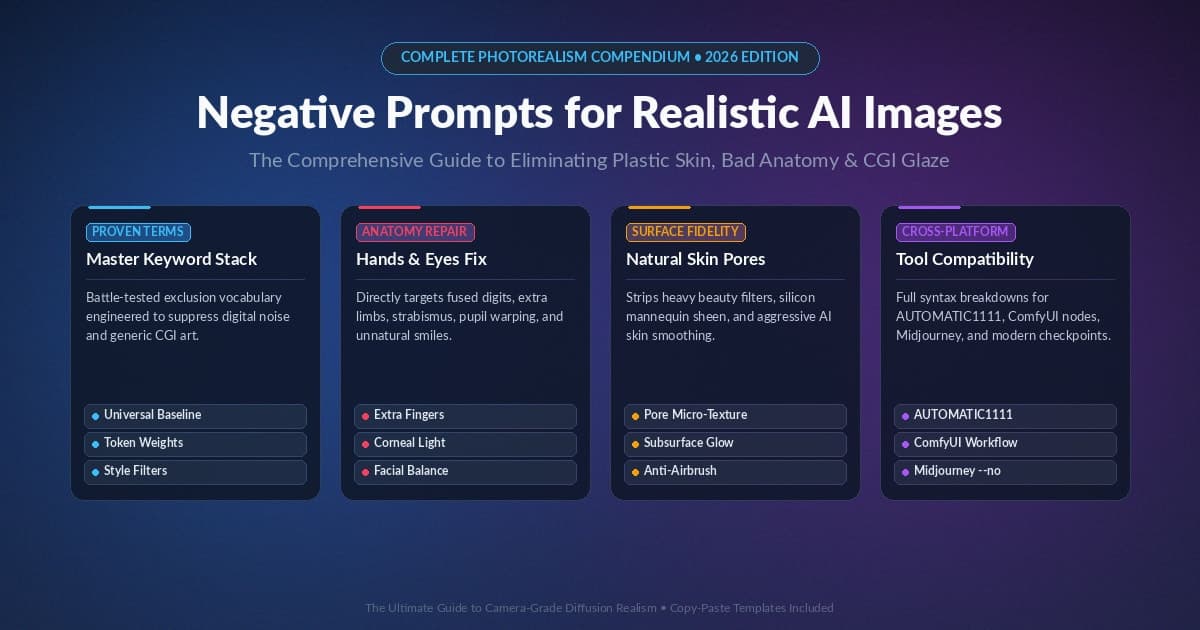
Introduction
Many creators struggle because their AI
pictures look fake, waxy, or plastic. Learning strong negative prompts creators
trust fixes this problem fast, even on tricky, tough shots. This guide covers
over 150 tested terms in plain, simple words. You will fix skin texture, hands,
faces, and light in your photorealistic images.
We break down syntax for AUTOMATIC1111, ComfyUI,
and Midjourney step by step. You also get ready-to-use prompt templates for
portraits, products, and landscapes you can copy today. By the end, you will
know which exact words to add to your negative prompt list for clean, real
photo results every single time you generate a brand new image.
Why AI Images Look Fake
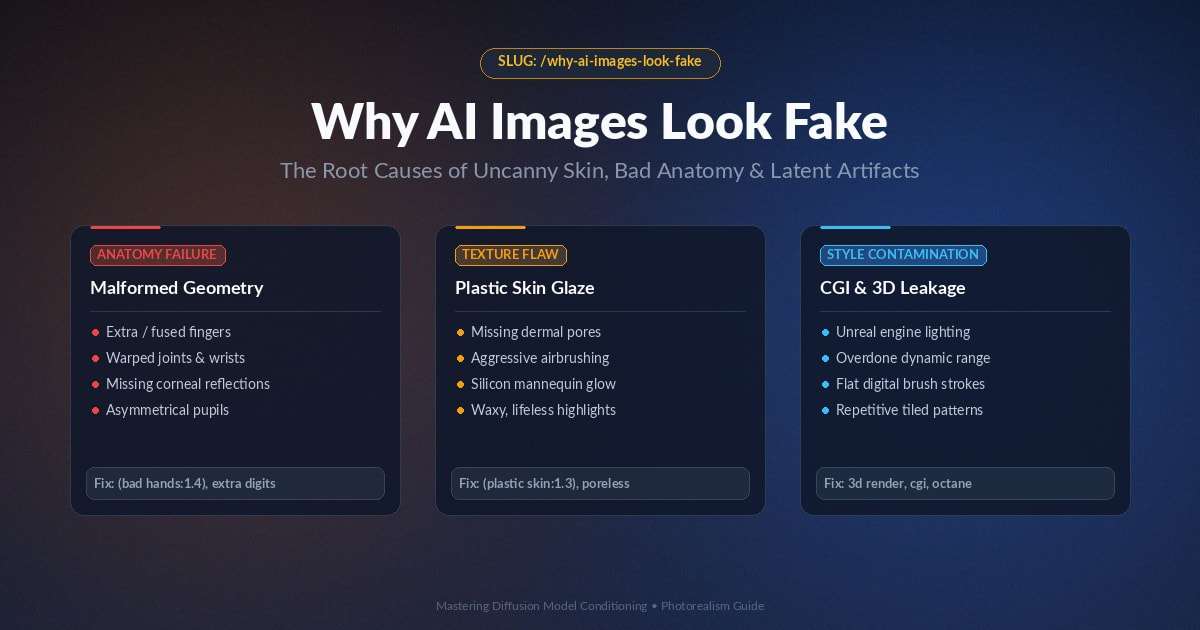
Most AI models learn from web art full of
drawings, 3D renders, and heavy filters. This training mix pushes results
toward plastic skin and flat, fake light. Good negative prompts creators
use can pull results back toward real photos.
How the Image-Building Process Works
The model removes random noise step by step to
build your AI image. Without clear negative prompts, it often picks the wrong
style by chance. Negative words push the model toward real camera photos
instead.
How Negative Prompts Narrow the Choices
Each negative prompt you add blocks off a set
of bad options first. This leaves more room for real skin, real light, and real
shapes. Think of it as closing wrong doors before the model picks one.
|
Defect Area |
What Goes
Wrong |
Fix Keywords
to Add |
|
Skin
|
Waxy,
poreless, doll-like skin |
plastic
skin, airbrushed, poreless, doll skin |
|
Hands
|
Extra
or fused fingers |
malformed
hands, extra digits, fused fingers |
|
Lighting
|
Flat,
fake CGI glow |
3d
render, unreal engine, fake light, raytraced |
|
Background
|
Random
text or logos |
watermark,
text, logo, signature, copyright |
Negative Prompt Syntax Across Platforms
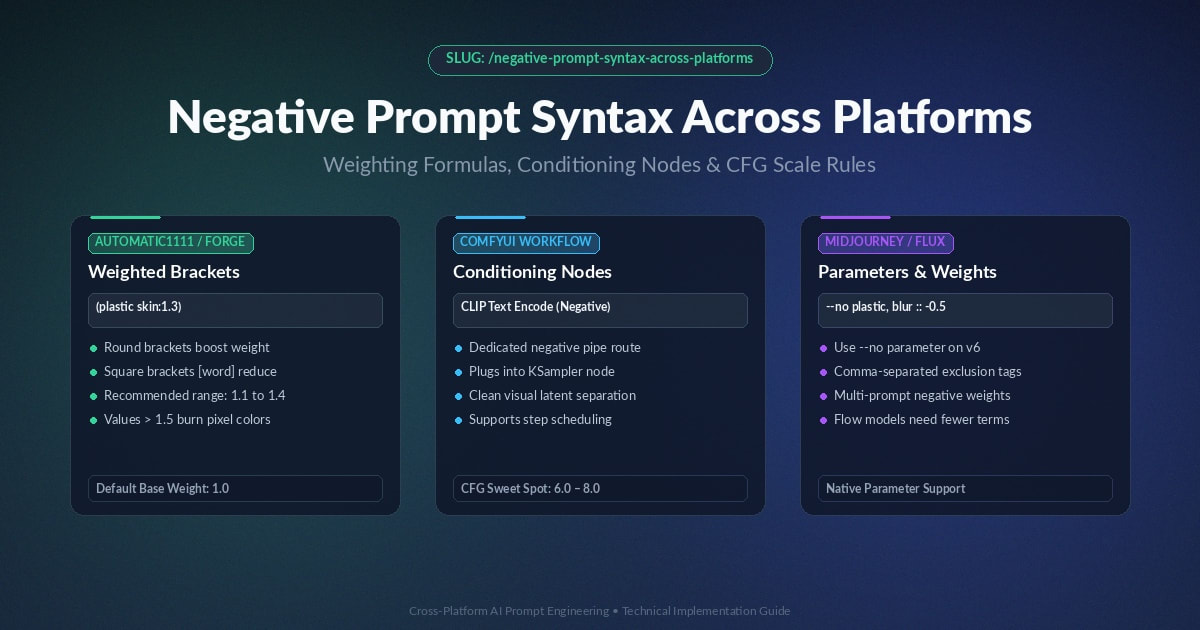
Each tool reads negative prompts in its own
way. Learning the right prompt syntax stops your weights from breaking the
image. This part covers AUTOMATIC1111, ComfyUI, and CFG scale in plain terms.
AUTOMATIC1111 Weighted Brackets
Wrap a word in brackets like (plastic
skin:1.3) to boost its prompt weight by 30 percent. The normal weight is 1.0
for every word you type. Keep weights under 1.5, since higher values burn
colors fast.
ComfyUI Negative Nodes
In ComfyUI, your negative prompt plugs
straight into the KSampler node. Keeping this node clean stops your positive
prompt ideas from mixing in. Clean node setups also run a bit faster.
Getting CFG Scale Right
CFG scale controls how hard the model follows
your prompt. Keep it between 6 and 8 for photorealistic images. Going above 10
often causes harsh contrast and a fried, over-sharp look.
The Universal Photorealism Baseline
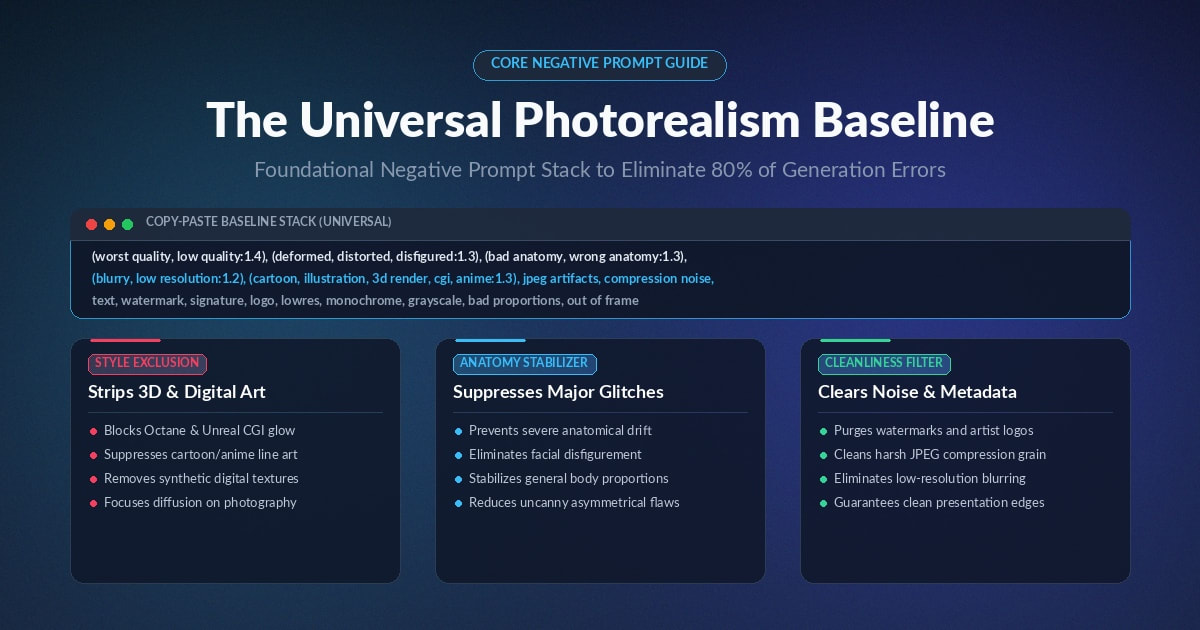
Every strong image starts with one solid base
list of negative prompts. This baseline prompt removes cartoon looks, bad
anatomy, and compression noise. Copy it below and add your own topic words on
top.
Copy-paste
baseline:
(worst quality, low quality:1.4), (deformed,
distorted, disfigured:1.3), (bad anatomy, wrong anatomy:1.3), (blurry, low
resolution:1.2), (cartoon, illustration, 3d render, cgi, anime:1.3), jpeg
artifacts, compression noise, text, watermark, signature, logo, lowres,
monochrome, grayscale, bad proportions, out of frame
Why This Base List Saves Time
This one baseline prompt removes most common
mistakes from your first try. Fewer bad first tries mean less wasted GPU time
and less rework later. Add it to every new project before your custom words.
Fixing Hands, Faces, and Eyes
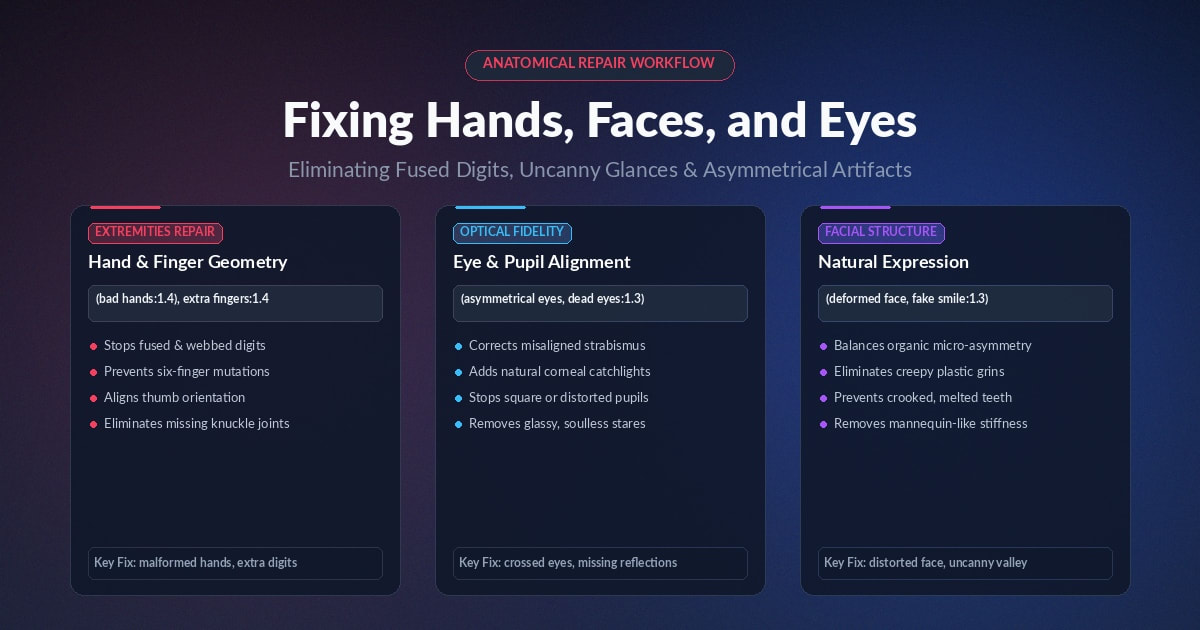
Broken hands and odd faces are the most common
AI image flaws. Targeted negative prompts fix most of these issues fast.
This part covers hand fixes and face fixes in plain steps.
Hand and Finger Fixes
Models often fuse fingers since flat training
photos hide real depth. Add terms like (bad hands, malformed hands:1.4) and
(extra fingers, fused digits:1.4) to fix this. These negative prompts push the
model toward a normal finger count.
Fixing Faces and Eye Symmetry
Perfectly mirrored faces look robotic and a
bit creepy to real viewers. Add (asymmetrical eyes, dead eyes, doll eyes:1.3)
along with crooked teeth and a distorted face. Real AI faces need small, uneven
skin details to look truly alive, not fake.
Natural Skin Textures: Fixing the Plastic Look
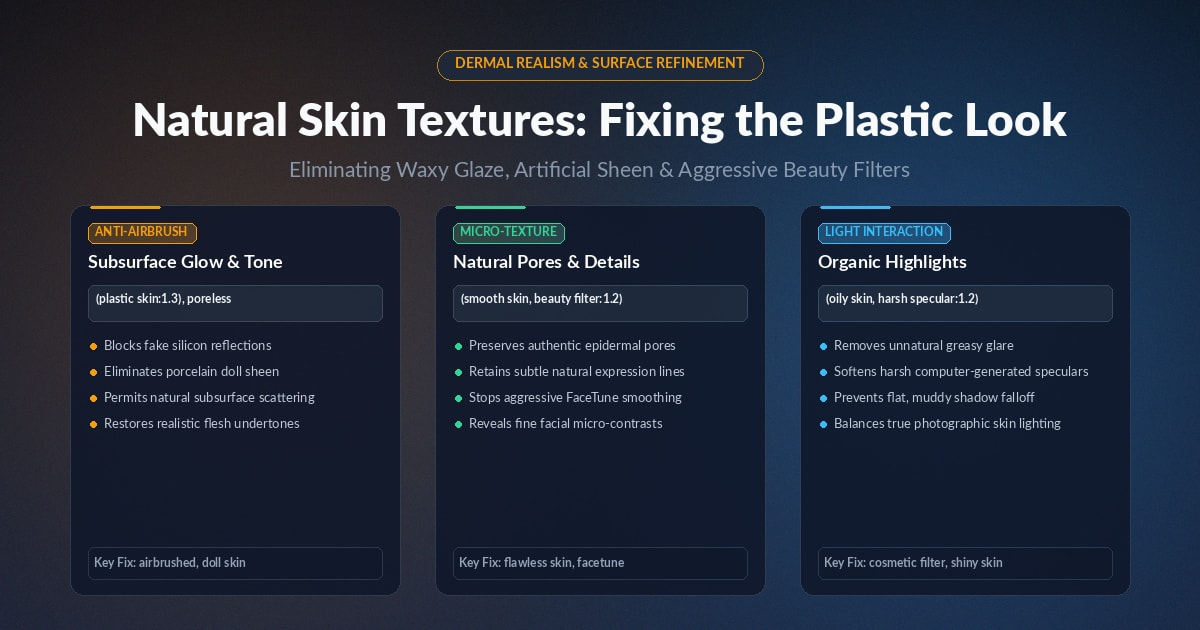
Most base models copy the look of heavy phone
filters and studio work. This ruins real pores, fine lines, and small skin
details in your photos. A clean negative prompt list brings that real skin
texture right back.
- Subsurface
glow fix: block harsh glare so skin looks lit from
within, not flat
- Natural
detail fix: block “smooth skin” and “airbrushed” so
pores and lines return
- Real
light fix: block “cosmetic filter” and “poreless”
so tiny shadows stay on the face
Lighting, Composition, and Environment
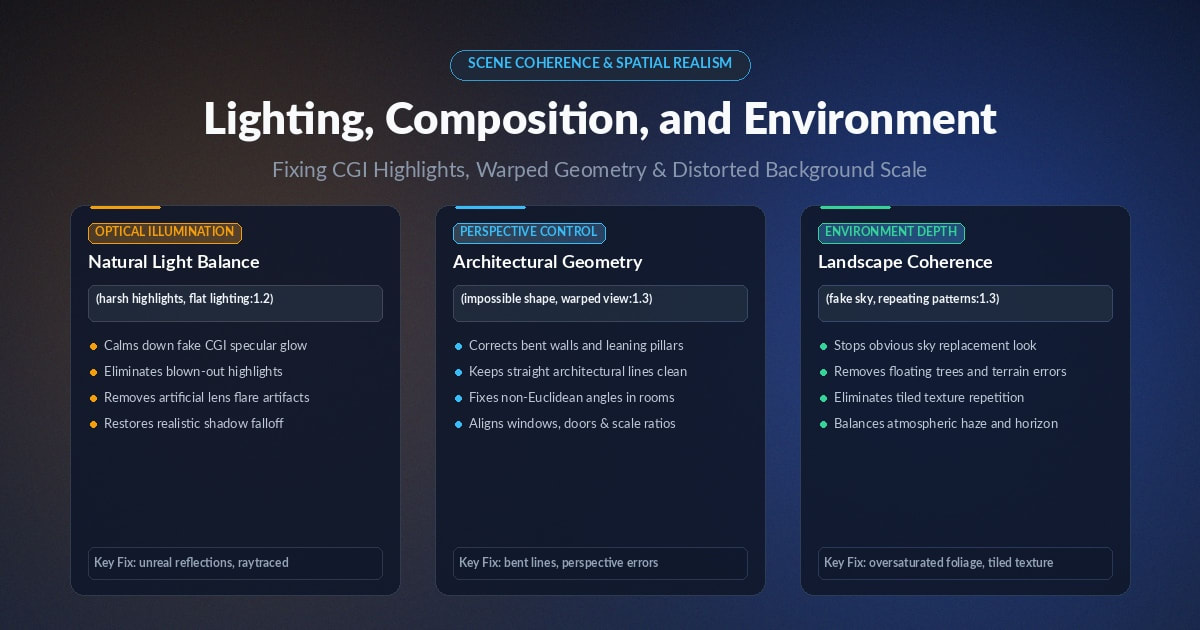
Harsh, fake light can ruin a strong AI scene
fast. Many models add odd highlights that do not match real sun light. The
right negative prompt terms fix full scenes and backgrounds too.
Common Lighting and Highlight Fixes
Add (harsh highlights, flat lighting, unreal
reflections:1.2) to calm down fake shine. Also block bright colors, blown-out
light, and lens flare. This keeps sky, water, and metal looking like real
photos.
Building and Room Shape Fixes
Bent walls and warped lines often ruin
interior shots and building shots badly. Add (impossible shape, warped view,
bent lines:1.3) to fix this fast. This keeps straight walls straight and
windows lined up right.
Negative Embeddings and LoRAs: Worth Using?
Tools like EasyNegative pack dozens of
negative prompts into one small file. They save time but can hide which single
word does the real work. This part covers when each embedding method fits best.
|
Method |
Pros |
Cons |
|
Manual
text prompts |
Full
control, easy to fix |
Can
hit token limits fast |
|
Textual
inversion files |
Clean
prompt box, saves time |
Can
block colors you wanted |
When to Use Each Method
Pick manual text prompts for fine, high-end
work you plan to fully control. Pick a small embedding file when you need fast,
high-volume image batches. Many artists mix both methods for daily use.
Common Negative Prompting Mistakes to Avoid
Small setup mistakes waste time and hurt your
final image. Fixing these early saves many failed tries later on. Here are the
top errors creators make with negative prompts tools.
- Over-weighting
words: keep weights under 1.5 to avoid burned
colors and dark spots
- Pasting
old lists: skip random 200-word lists from old
forum posts with mixed terms
- Fighting
your own prompt: do not ask for “dark moody light” while
blocking “harsh shadows”
- Too
many words: keep your core negative prompt list
under 60 words for best results
- Wrong
model match: terms built for one model can hurt a
different model checkpoint
Which AI Tools Support Negative Prompts
Most major AI image tools support some form of
negative input today. Knowing where each tool hides this setting saves setup
time. Good negative prompts work needs the right tool and the right
syntax together.
Stable Diffusion and SDXL Tools
Stable Diffusion and SDXL both use a plain
negative text box by default. AUTOMATIC1111 and ComfyUI both build on this same
base model. Most negative prompt guides online focus mainly on these two tools.
Midjourney and Newer Models
Midjourney uses a short --no tag instead of a
full text box. Newer flow-based models like Flux often need far fewer negative
words. Always check each tool’s own docs before you copy an old prompt list.
Quick Testing Tips Before a Big Batch
Testing your negative prompt list first saves
real time and GPU cost. A few small test runs catch bad words before a big
batch. Follow these simple steps before you scale up.
- Test
on one image first: run a single image before a big batch
job
- Change
one word at a time: so you know exactly what fixed the flaw
- Save
your best lists: keep a working negative prompt list for
each project type
- Recheck
after model updates: old terms can act differently on a new
checkpoint
Building Your Own Custom Negative Prompt List
Every project type needs its own small twist
on the base list. This part shows how to build your own negative prompt list
from scratch over time.
Start Small and Add Slowly
Start with the universal baseline and only
your top three problem words. Add one new term per test batch, not ten at once.
This way, you always know which word fixed which flaw.
Save Presets for Each Project Type
Keep a saved negative prompt list for
portraits, products, and landscapes apart. This turns your best negative
prompts work into a fast, reusable toolkit. You save real setup time on
every new project after that.
Ready-to-Use Negative Prompt Templates
Use these tested prompt templates for common
AI image projects below. Swap in your own style words on top of each base list.
Portrait
and editorial shots:
(worst quality, low quality:1.4), (deformed
iris, crossed eyes:1.3), (plastic skin, airbrushed, doll eyes:1.3), (bad hands,
extra fingers:1.4), harsh shadows, oversaturated, fake smile, 3d render, cgi,
anime, monochrome
Product
and food photography:
(low quality, blurry, depth of field
blur:1.3), (3d render, illustration, painting:1.4), distorted geometry,
reflection errors, scratches, dents, text, watermark, logo, lowres, cheap texture,
dust particles
Landscape
and travel shots:
(low resolution, blurry, atmospheric
haze:1.3), (painting, drawing, cgi, vector graphic:1.4), fake sky, impossible
terrain, oversaturated foliage, floating trees, compression noise, tiled
patterns, plastic leaves
Interior
and real estate renders:
(warped perspective, bent lines, non-euclidean
structures:1.4), (impossible lighting, conflicting shadows:1.3), low quality
textures, pixelation, out of proportion furniture, floating decor, blurry
textures, watermark
Frequently asked questions
What is a negative prompt?+
A negative prompt tells an AI what you do not want in the generated result. It can help avoid unwanted objects, styles, colors, or visual errors.
What are some good negative prompts?+
Common negative prompts include blurry, low quality, distorted, extra fingers, bad anatomy, text, watermark, duplicate objects, and oversaturated colors. The best choices depend on what you are creating.
What are some examples of bad prompts?+
Bad prompts are often too vague, confusing, or overloaded with unrelated instructions. For example, “Make a good image” gives an AI very little useful direction.
What are positive and negative prompts?+
A positive prompt describes what you want the AI to create, while a negative prompt describes what you want it to avoid. Using both can give you more controlled results.
What are the three types of prompts?+
Three common prompt types are positive prompts, negative prompts, and conditional prompts. Each guides the AI in a different way, depending on the task and desired output.
How to put a negative prompt?+
If the AI tool has a dedicated Negative Prompt field, enter your unwanted elements there. If it does not, clearly state what to avoid within the main prompt.
Related articles
 AI Image Tools
Free AI T-Shirt Design Generator: Instant Mockups(2026)
Try a free AI t-shirt design generator to create realistic apparel mockups in seconds, with no design skills or studio needed.
 AI Image Tools
AI Image Generator Pricing (2026): Every Tool Compared
AI image generator pricing compared: real monthly costs, free tiers, hidden fees, and how to cut your bill in 2026.
 AI Image Tools
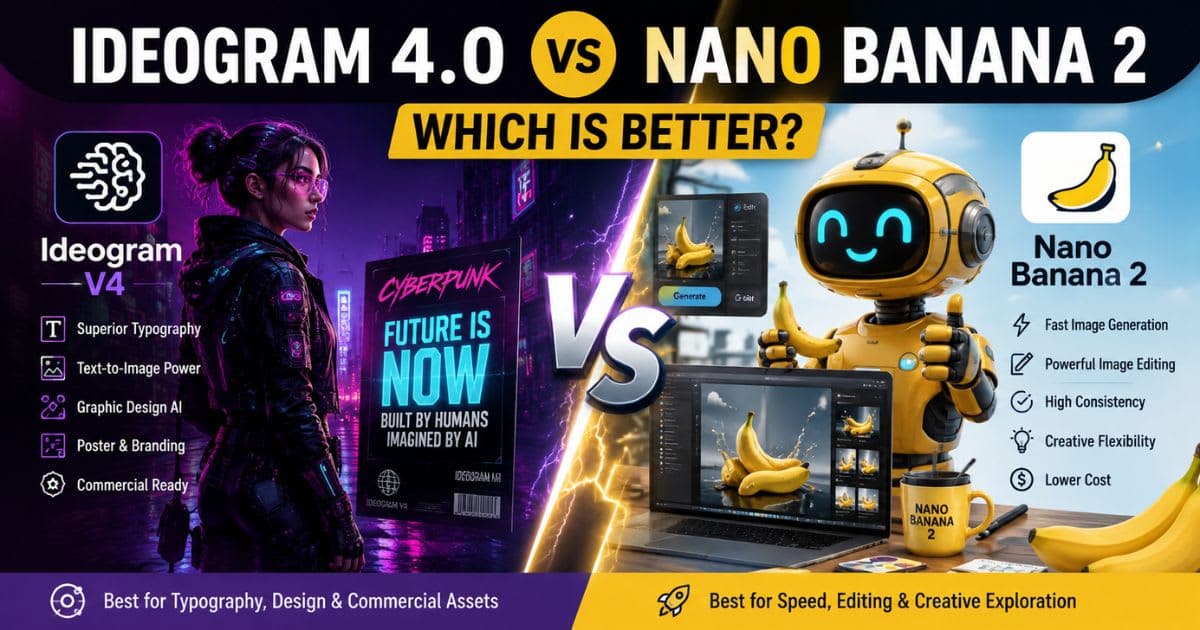
Ideogram V4 vs Nano Banana 2 : Which AI Image Tool Renders Text Better?
Ideogram 4.0 vs Nano Banana 2: Compare text rendering, image quality, editing, pricing, and find the best AI image model.
New AI tool reviews, in your inbox.
Get new reviews and comparisons in your inbox. No spam, unsubscribe anytime.
Comments (0)
Be the first to comment.