GitKraken Kepler Tutorial: How to Use the ADE
GitKraken Kepler tutorial: learn how to use the agentic development environment (ADE), manage multiple repos, and run AI coding agents step by step.
Introduction:
Mastering modern software
engineering requires moving far beyond basic code autocomplete toward
intelligent project orchestration. In this comprehensive GitKraken Kepler Tutorial, you
will discover how an Agentic
Development Environment elevates engineering velocity by organizing complex
workflows. The GitKraken Kepler
ADE coordinates autonomous coding tools across linked repositories
seamlessly.
Instead of juggling fragmented
terminal prompts or fighting painful merge conflicts, you unlock deep multi-repository context management
alongside automated Kepler git
worktrees. This practical hands-on guide walks you through configuration,
live agent steering, and pull request delivery across your repositories.
Elevate your development pipeline today and experience how autonomous task
management transforms modern software architecture for high-performing
technical teams from day one.
GitKraken
Kepler Tutorial: What Is It and How Does an ADE Work?
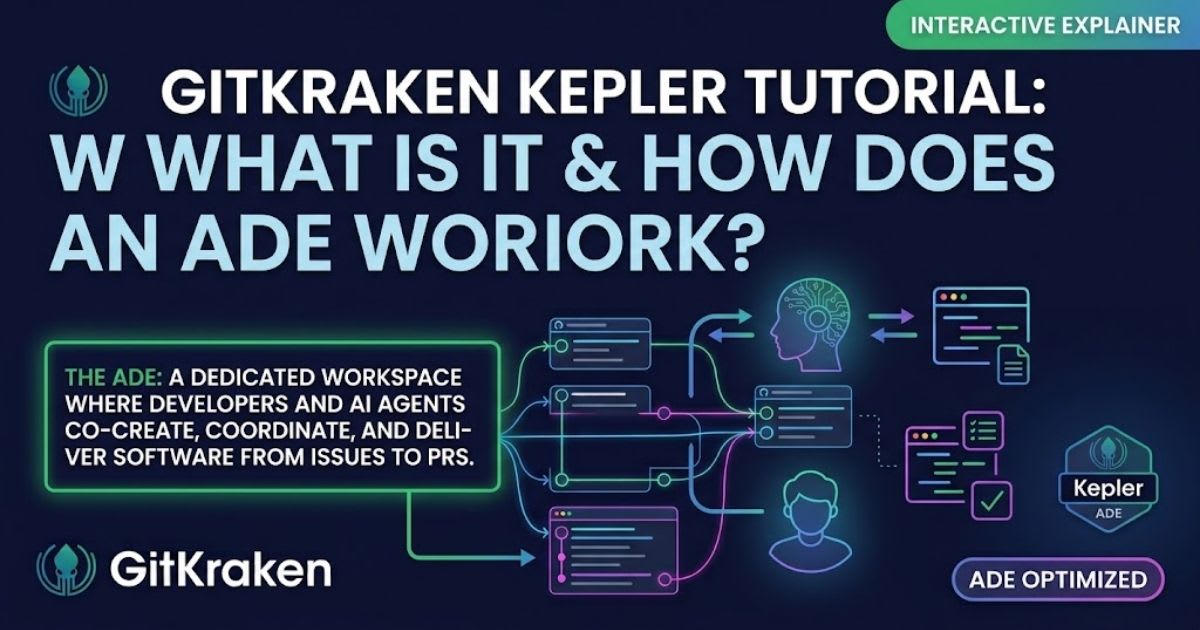
Developers often wonder what GitKraken Kepler does when
they manage distributed codebases. The GitKraken Kepler ADE coordinates
your autonomous tools inside an isolated workspace. It wraps task
orchestration around your tools, so you never lose control of changes. This
platform delivers a strong Agentic Development Environment for teams
working on modern enterprise projects. It gives you seamless multi-repository
context management for complex codebases. You can now delegate tough coding
jobs without worrying about branch conflicts or lost context.
Understanding
Agentic Development Environment (ADE) vs Traditional Git GUI
When you compare GitKraken Kepler to traditional Git GUI
tools, the differences stand out fast. An Agentic Development Environment
coordinates autonomous coding tools, instead of just staging local commits. You
set the high-level project goals, and smart agents write the code
changes across repositories.
Managing Multi-Repository Context
for Coding Agents
Learning to manage multiple git repositories with Kepler ends frustrating
context switching between projects. The engine feeds deep repository-level
context straight to active agents. This setup keeps code changes
consistent across microservices, with no manual work or broken upstream
dependencies.
Installation
and Environment Setup Checklist
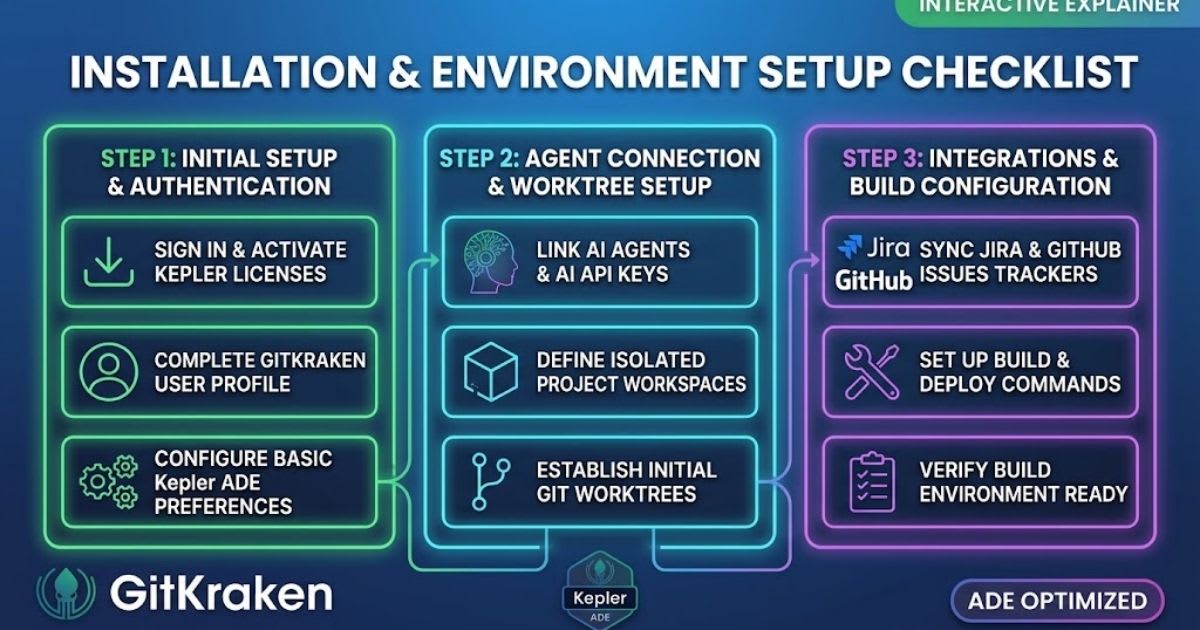
You can master how to set up GitKraken Kepler step by step,
on every major operating system. Start by grabbing the official GitKraken
Kepler download package. The setup wizard checks your local dev environment
and preps your machine for agent automation.
"Kepler transforms fragmented coding tasks into a unified
delivery pipeline where human oversight guides autonomous tools
seamlessly."
Before you launch the software, check the GitKraken Kepler
system requirements to dodge performance issues. Review the official GitKraken
Kepler documentation for platform dependencies. A properly configured
environment keeps execution smooth during heavy multi-agent coding
sessions.
|
Operating System |
Recommended RAM |
Supported Architecture |
Minimum Git Version |
|
macOS |
16 GB |
Apple Silicon / Intel x86_64 |
Git 2.40+ |
|
Windows |
16 GB |
64-bit Architecture |
Git 2.40+ |
|
Linux |
16 GB |
x86_64 (Debian/Fedora/Arch) |
Git 2.40+ |
System
Requirements and Platform Installers (macOS, Windows, Linux)
Follow the Kepler macOS setup guide, or grab the GitKraken
Kepler Windows installer. Linux users can install packages with the Kepler
Linux installer archive. Each installer preps background services and
checks your terminal tools for smooth coding sessions.
Signing
in with GitKraken and Initial Onboarding
This part of the GitKraken Kepler Tutorial covers your
first account authentication step. Complete your GitKraken Kepler
provider credentials setup to unlock shared workspaces. You can also check GitKraken
Kepler pricing and plans to pick enterprise features for your team.
Connecting
Providers and Issue Tracker Integrations
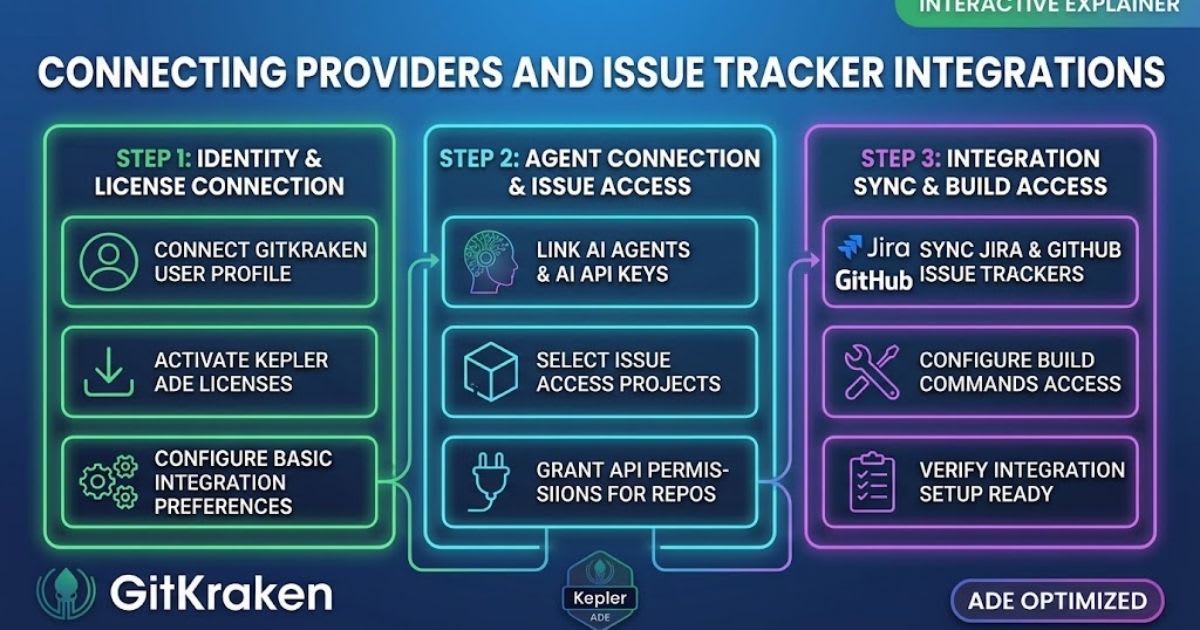
You can easily connect Jira issues to GitKraken Kepler
to speed up sprint work. The platform keeps a real-time, two-way issue
tracker sync with your task boards. This bridge turns static user stories
into active development tasks, right inside your workspace. Engineering leads
often ask if GitKraken Kepler is free for small open-source teams.
GitKraken offers accessible tiers alongside strong enterprise features. Connecting
your issue boards helps you speed up task execution and cut manual tracking
work across sprints.
Integrating
GitHub, GitLab, and Jira Trackers
Turn on steady GitHub issue sync, and connect your GitLab
repositories to Kepler today. Your linked issue boards refresh project backlogs
automatically, right inside the main interface. This direct link gives you
clean traceability, from the first bug report to the final pull request.
Populating
and Organizing the Kepler Todo View
Mastering the Todo View gives you structured task
management across several active projects. The organized dashboard shows
backlog tickets and pull requests clearly. You can prioritize incoming work
fast, so your team stays focused on the features that matter most.
Connecting
and Configuring AI Agent Integrations
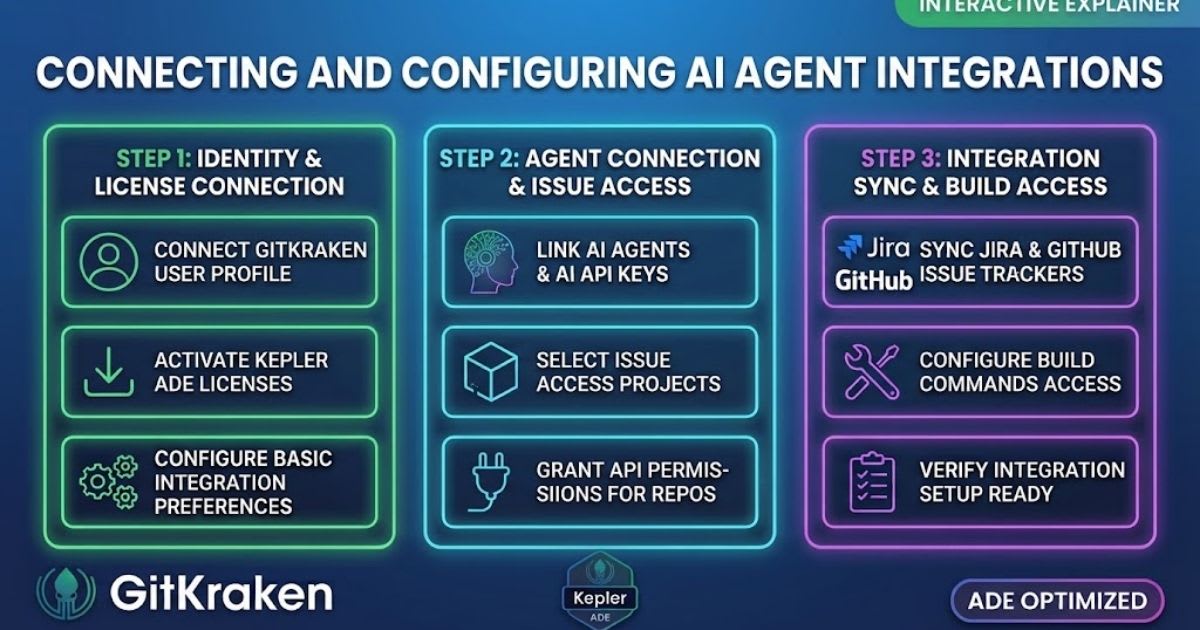
Discover how to connect coding agents in Kepler, using
standard developer settings. The environment links directly to your favorite AI
coding assistant. It works as a flexible agentic IDE alternative
that boosts your existing terminal tools. Every autonomous coding agent
needs secure permissions to write code safely inside your projects. Store your
private GitKraken Kepler API keys inside the credential vault. This
setup gives you smooth agent authorization, while keeping strong security
across every repository.
Supported
Coding Agents and API Setup
Connect popular autonomous models through the built-in AI code
generator settings. You can pair Claude Code, OpenAI Codex CLI,
or Cursor agents, with no complex setup. The platform finds your local
CLI installs automatically and links them to your active projects.
Managing
Provider Credentials and Permissions
Keep your agent operations secure with strict workspace
isolation policies. Kepler stores sensitive API tokens locally, in
encrypted form. This approach stops accidental token leaks and protects private
enterprise repositories during automated code generation.
Creating
and Managing Tasks in Kepler
This section of the GitKraken Kepler Tutorial walks you
through everyday task orchestration. Smart AI agent task delegation
in GitKraken keeps your development speed high. You hand off tough problems to
specialized agents, while you keep full oversight of the code. Task-driven
software engineering changes how teams tackle backlog work. The system treats
each task as its own unit, with a custom prompt and branch reference. This
structure lets you track progress clearly, from the first idea to the merged
pull request.
Starting
Tracked Tasks Directly from Issues and PRs
Turn backlog tickets into tracked coding assignments with one
click. Kepler pulls in project requirements automatically to guide the agentic
workflow. Your agents get the full issue description and start writing
code, with no extra prompting from you.
Creating
Untracked Standalone Tasks with Shift+Alt+T
Learn how to create untracked tasks in Kepler for quick
tests. Press the keyboard shortcut, and an untracked task session starts right
away. This sandbox works well for testing new ideas, without cluttering your
public project issue board.
Working
with Automated Worktrees and Repo Commands
Learning to set up isolated git worktrees in Kepler
protects your main branch. The app uses Kepler worktrees to keep
concurrent code changes separate. You can experiment freely across branches,
with no merge conflicts or a messy working directory. Developers gain a lot
from native worktree automation during tough refactoring work. The
engine builds isolated folders for every active task across linked repos. This
sandboxed setup makes sure automated tools work safely, without touching your
ongoing manual work.
+-------------------------------------------------------------+
| Kepler Task Manager |
+-------------------------------------------------------------+
|
+----------------------+----------------------+
v v
+-----------------------------+ +-----------------------------+
| Task A:
Worktree Sandbox | | Task B: Worktree Sandbox |
| Repo 1:
/worktree/feature | | Repo 1: /worktree/bugfix |
| Agent:
Claude Code | | Agent: Codex CLI |
+-----------------------------+ +-----------------------------+
Automatic
Isolated Worktree Provisioning
Kepler enforces isolated branch sandboxing by spinning up fresh worktrees
automatically for each task. Agents write and test code only inside these
dedicated task folders. Your main branch stays untouched until you check and
approve the finished changes.
Configuring
Setup, Install, and Build Commands
Learn how to run setup and build commands in Kepler with
ease. Set your standard startup scripts in the Kepler build command
menu. The platform runs install scripts on its own, to build a ready
environment for every new worktree.
Directing
Live Agent Sessions and Using Actions
Learn how to steer live AI coding sessions with simple
action buttons and prompts. The Kepler prompt interface lets you guide
active agent sessions in real time. You can review the logic, pause the work,
or redirect the strategy without a restart. Prompt-based code steering
makes sure the finished code fits your architecture. You give quick feedback
whenever an agent picks an inefficient path. This human-in-the-loop workflow
keeps code quality high across every project milestone.
Default
Action Workflows (Plan, Review, Address Feedback)
Use pre-built actions to cut down repeat development work. These
built-in workflows trigger automated code review and unit test creation.
You can pick standard templates to plan big architectures, or to answer pull
request comments fast.
Steering
Agents Mid-Session via Prompts and Voice Input
Get hands-free control with voice commands in GitKraken
Kepler. The built-in voice prompt system turns spoken words into clear
instructions. You can guide tricky refactoring work out loud, while you check
code diffs on your main screen.
Visualizing
Parallel Work with the Agent Graph
You can learn how to run parallel coding agents in
GitKraken with ease. The interactive multi-agent execution graph shows
concurrent agent work across your repos. It gives engineering leads full
visibility into active tasks, branch links, and async progress. This GitKraken
Kepler Tutorial shows how well concurrent workers perform. Multi-agent
orchestration lets your team fix bugs and build features at the same time.
You cut development delays by handing off separate backlog items to autonomous
agents that run in parallel.
+-------------------------------------------------------------+
|
Multi-Agent Execution Graph |
+-------------------------------------------------------------+
| [Repo:
Auth-Service] --> Branch: feature/oauth2 |
| [Repo:
Web-Client] --> Branch: feature/login-ui |
| Status:
Parallel Execution Active (2 Agents Running) |
+-------------------------------------------------------------+
Monitoring
Multi-Agent Execution in Real Time
Track parallel progress as you monitor agent progress in
real time. The graph panel shows active background sessions and terminal
output. You get instant feedback, so you can catch failed builds or test
regressions fast.
Managing
Branch Dependencies Across Multiple Repositories
Advanced multi-repo branch visualization makes complex,
multi-service projects simple. The dashboard enforces structured branch
dependency management across linked repos. This clear view stops
integration errors when you ship features that span microservices and shared
libraries.
Reviewing
AI Changes and Merging Pull Requests
Learn how to review AI-generated diffs in Kepler before you
merge changes into shared branches. The code diff review screen
highlights line-by-line additions and deletions clearly. You check every change
closely, so only solid code reaches your pipelines.
Engineers can automate pull request creation with AI agents
to lift team output. The built-in automated pull request generator
drafts clear descriptions on its own. This automation saves real engineering
hours, while it keeps your change history clean.
Inspecting
Agent-Generated Diffs in the Task View
Run fast diff inspection right inside the unified Task
View. The visual diff viewer color-codes updates and highlights syntax changes
cleanly. You can accept single hunks, or ask for changes before you commit the
work upstream.
Pushing
Verified Changes and Opening Pull Requests
Use smart AI pull request generation to document tricky
code changes on its own. Kepler formats commit messages and opens pull requests
on your remote host. This smooth handoff keeps team collaboration easy and
reviews fast.
Remote
Environments and Headless Kepler Control
You can set up remote cloud workspace integration with
Kepler for distributed teams. A connected GitKraken cloud workspace runs
heavy background agents, without using your local CPU. Your team stays
productive, whether working from home or the office. Running a persistent headless
Kepler session lets agents work unattended on remote servers. This headless
environment runs tests and builds code inside cloud containers. You can
trigger tasks remotely and check the results whenever it suits you.
+-------------------------------------------------------------+
| Headless Cloud Delivery Pipeline |
+-------------------------------------------------------------+
| Local
Kepler UI --> Remote Cloud Workspace --> CI/CD Bot |
| (Steer
Prompts) (Executes Agent
Tasks) (Merges) |
+-------------------------------------------------------------+
Connecting
to Remote Workspaces and Cloud Dev Environments
Add cloud workstations to your regular Kepler multi-repo
workflow, with no complex setup. Kepler links to remote containers and
virtual machines securely. This connection gives you steady build performance,
no matter your local machine's limits.
Managing Kepler Sessions Remotely
This GitKraken Kepler Tutorial on the ADE workflow helps
engineers work with more independence. Manage remote sessions with ease, as
part of your standard DevEx AI tooling strategy. You unlock top
engineering output across every stage of the development cycle.
Frequently asked questions
What is the difference between GitHub and GitKraken?+
GitHub is a cloud-based hosting service and platform for Git repositories where code is remotely stored and shared. GitKraken is a visual desktop Git client (GUI) used to manage, inspect, and interact with local and remote repositories hosted on platforms like GitHub, GitLab, and Bitbucket.
How does GitKraken work?+
GitKraken translates Git CLI commands into an interactive graphical interface. It renders branch histories, commit trees, merge conflict resolutions, and pull requests visually, allowing developers to execute operations via drag-and-drop and one-click controls.
Is GitKraken good?+
Yes, it is highly regarded for simplifying complex Git operations, resolving merge conflicts visually, and managing multi-repository workspaces. It reduces syntax errors and speeds up everyday version-control workflows for both beginners and experienced teams.
Is GitKraken safe to use?+
Yes, GitKraken is safe and secure. It relies on standard authentication protocols (OAuth, SSH, GPG), is SOC 2 certified, encrypts data in transit and at rest, and does not store or train AI models on your private source code.
How much does GitKraken cost?+
GitKraken offers a free Community plan for public and open-source repositories. Paid plans for private repositories and team collaboration start with Pro at $4 per user per month and Advanced at $12 per user per month (billed annually).
Related articles
 Guides & Tutorials
Answer AI Extension Guide (2026): Free Limits and Safety
Discover how the Answer AI extension works, its free features, accuracy, subscription costs, and the best alternatives for your needs.
 Guides & Tutorials
Best AI Tools for Data Analysis in 2026: Needs and Costs
Best AI tools for data analysis: compare ten tools, real prices, hidden setup rules, and how to check AI results before you share.
 Guides & Tutorials
Best AI Tools Directories in 2026 (Compared and Explained)
Find the best AI tools directories in 2026. Compare the 9 top sites, spot paid listings, and learn how to submit your own AI tool.
New AI tool reviews, in your inbox.
Get new reviews and comparisons in your inbox. No spam, unsubscribe anytime.
Comments (0)
Be the first to comment.